How to Fix Rank Math XML Sitemap 404 Error (Proven Fixes)
How to Fix the Rank Math XML Sitemap 404 Error (Proven Fixes)
When your sitemap returns a 404 error, Google stops finding your new pages. Here is exactly how to fix the broken rewrite rules, bypass server caches, and resolve complex routing conflicts.
You install Rank Math, configure your settings, and click the sitemap link.
Instead of seeing your website URLs, you get a dead end.
“Oops! That page can’t be found.”
If your wordpress sitemap index xml 404 error is not fixed quickly, search engines will stop indexing your newest service pages and blog posts.
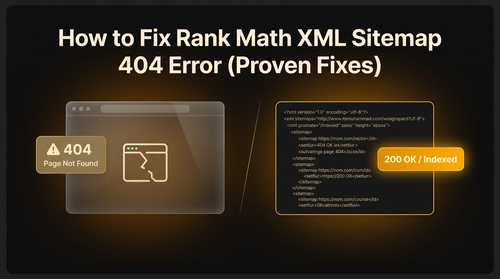
Unlike older SEO plugins, Rank Math does not create a physical XML file on your server. It generates your sitemap dynamically on the fly using WordPress rewrite rules. When those rules break—or when a reverse-proxy cache intercepts the request—the sitemap disappears.
Here is the complete technical process to fix a rank math sitemap 404 error, starting with a real client case study.
The 60-Second Triage Protocol
Before changing any settings, you need to know exactly what is failing.
Open a private browsing (incognito) window and test these two URLs for your website:
Test 1 (Cache Buster): yourdomain.com/sitemap_index.xml?nocache=1
Test 2 (Direct Query): yourdomain.com/?sitemap=1
How to read the results:
- If Test 1 works, your problem is page caching. A plugin or CDN is serving a stale 404 page.
- If Test 2 works but Test 1 fails, your problem is WordPress routing. The rewrite rules are broken.
- If both return a blank white screen (not a theme 404 page), you have a PHP fatal error or a plugin conflict, not a routing issue.
Real Case Study: The LiteSpeed Cache Fix
I recently audited a client site, PinsDownload.org (a high-traffic Pinterest media downloader tool). Their rank math sitemap not working issue was causing severe indexing delays. Despite configuring Rank Math perfectly, their sitemap_index.xml returned a hard 404 error, and Google could not fetch their media links.
The root cause? The underlying WordPress rewrite rules were completely intact. However, their LiteSpeed server cache had intercepted an earlier broken request. It was continuously serving a cached 404 response header before Rank Math could dynamically generate the XML feed.
If you use a reverse-proxy cache like LiteSpeed or Cloudflare, purging the cache will often restore the sitemap instantly.
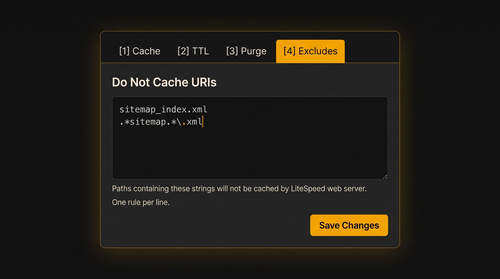
However, you must tell your caching tool to ignore the sitemap permanently to prevent it from caching a 404 again. Here is how we fixed the litespeed cache sitemap 404 error for PinsDownload:
sitemap_index.xml.*sitemap.*\.xmlThis setup forces the server to bypass static storage and request a fresh, dynamic sitemap directly from Rank Math every time.
Flush WordPress Permalinks
If caching is not the problem, your WordPress rewrite table is likely out of sync.
This happens frequently after updating SEO plugins, changing themes, or migrating to a new host. WordPress simply forgets that Rank Math needs to intercept the sitemap URL.
To fix rank math sitemap 404 errors caused by routing, force a hard flush:
- Go to Settings > Permalinks in your WordPress dashboard.
- Ensure your structure is set to Post name.
- Scroll down and click Save Changes.
- Wait three seconds, then click Save Changes a second time.
Clicking save twice forces WordPress to wipe its internal rewrite array and rebuild the permalink routing directives from scratch.
Reset Rank Math Sitemap Transients
Rank Math stores a temporary version (a transient) of your sitemap in your database to reduce server load. If this transient database cache becomes corrupted, the sitemap will fail.
You need to force Rank Math to delete the old data.
- Go to Rank Math > Sitemap Settings.
- Find the “Links Per Sitemap” setting (the default is 200).
- Change the number to 201 and click Save Changes.
Changing this single integer forces Rank Math to invalidate its database cache. You can change the number back to 200 immediately afterward.
Alternatively, go to Rank Math > Status & Tools > Database Tools and click Clear Sitemap Cache.
Add Server Rewrite Rules (Apache & Nginx)
If flushing your permalinks did not work, your web host might restrict WordPress from editing the server configuration files automatically. You will need to add the rules manually.
For Apache Servers (.htaccess)
Access your site root via FTP or File Manager. Open your .htaccess file and paste this block directly above the # BEGIN WordPress line:
# START Rank Math Sitemap
RewriteEngine On
RewriteBase /
RewriteRule ^sitemap_index\.xml$ /index.php?sitemap=1 [L]
RewriteRule ^([^/]+?)-sitemap([0-9]+)?\.xml$ /index.php?sitemap=$1&sitemap_n=$2 [L]
# END Rank Math Sitemap
For Nginx Servers
Nginx does not support .htaccess files. You must add these lines to your Nginx virtual host configuration block:
# START Nginx Rewrites for Rank Math Sitemaps
rewrite ^/sitemap_index\.xml$ /index.php?sitemap=1 last;
rewrite ^/([^/]+?)-sitemap([0-9]+)?\.xml$ /index.php?sitemap=$1&sitemap_n=$2 last;
# END Nginx Rewrites for Rank Math Sitemaps
Restart your Nginx server after saving the configuration.
Advanced Edge Cases & Competitor Gaps
Most basic tutorials stop at flushing permalinks. If your sitemap is still broken, you are dealing with a complex application-level conflict. Here are the five technical edge cases you must check.
The Logged-In Paradox
If the sitemap loads perfectly when you are logged in, but shows a 404 for public visitors, it is a reverse-proxy cache issue. Logged-in admins bypass server cache. Purge Cloudflare or LiteSpeed.
CPTs Work, Posts Fail
If /course-sitemap.xml works but /post-sitemap.xml returns a 404, Custom Post Type plugins like WooCommerce or LearnPress have overwritten core WordPress rewrites. Flush permalinks to restore core routing.
WAF 403 Disguised as 404
Web Application Firewalls like Wordfence, Cloudflare Bot Management, or ModSecurity often flag XML scrapers as malicious. They return a 403 Forbidden status that renders as a generic 404. Check your firewall block logs.
The Headless WordPress Routing Intercept (Faust.js / Next.js)
If you run a Headless WordPress setup using Faust.js or Next.js, front-end URL rewrite filters often attempt to perform content replacement on XML paths. This breaks the Rank Math parser and causes a connection timeout or 404. You must update your sitemap.xml.js configuration to bypass front-end URL normalization specifically for sitemap paths.
The WP-CLI Hard Flush
If the WordPress dashboard is not successfully flushing your database rewrites due to memory limits, use a terminal interface. SSH into your server and run a hard flush directly via WP-CLI:
wp rewrite flush --hard
This forces a system-level wipe and rewrite of all routing directives.
Check Google Search Console
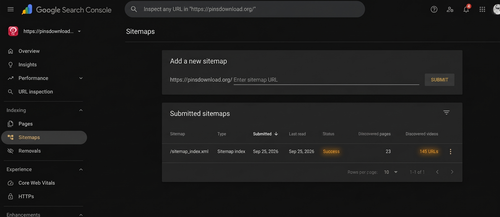
Once your sitemap loads correctly in your browser, you must clear the error in Google Search Console. Note that Search Console will often still say “Couldn’t fetch” due to reporting lag, even if the site is actively fetching successfully.
- Go to Google Search Console > Sitemaps.
- Remove the old sitemap submission containing the error.
- Submit the exact root URL:
sitemap_index.xml(Do not add a slash at the beginning). - Check your
robots.txtfile to ensure noDisallow: /sitemaporDisallow: /*.xmlrules are blocking Googlebot.
Give Google 24 to 72 hours to recrawl the restored XML feed and update the status to “Success”.
The Bottom Line
A Rank Math XML sitemap 404 error is almost always a routing collision or a caching trap, not a permanently broken website.
Do not waste time uninstalling plugins, deleting content, or reverting theme files.
Purge your server cache, exclude the XML regex URIs from LiteSpeed, flush your WordPress permalinks twice, and rebuild the Rank Math transients.
In 95% of cases, your sitemap will be back online in under five minutes.
Troubleshooting FAQs
Why does my sitemap work when I am logged in, but show a 404 for visitors?
This is a textbook caching issue. Logged-in administrators bypass server caching (like LiteSpeed or Cloudflare). Public visitors and Googlebot are being served a stale, cached 404 page. Purge your cache and add a cache exclusion rule for the sitemap.
Should I upload a physical sitemap.xml file instead of fixing Rank Math?
No. A physical XML file will not automatically update when you publish a new blog post or service page. You need the dynamic sitemap generated by Rank Math so search engines are pinged immediately when new content goes live. If you have an old physical file in your root folder, delete it to prevent collisions.
Does a broken sitemap hurt my SEO and rankings?
Yes, indirectly. Google can still find your pages by crawling internal links, but a broken sitemap drastically slows down the discovery and indexing of new or updated pages, especially on large websites.
Why did custom post types (like WooCommerce) work while my main pages returned a 404?
Plugins like LearnPress and WooCommerce register their own independent rewrite rules. Sometimes, core WordPress post rules break or get isolated while the custom plugin rules remain intact. Flushing your permalinks resets the entire table and fixes the disparity.
Traffic Dropped? Not Sure What Broke?
Technical SEO issues like broken sitemaps, 404 loops, and indexation drops can quietly drain your revenue. If your traffic has stalled and you need an expert to diagnose the root cause, I can help.
Get a Technical SEO Audit →