How to Fix a Suspended Google Business Profile (Reinstatement Guide)
How to Fix a Suspended Google Business Profile (Reinstatement Guide)
When your profile gets suspended, customer phone calls stop the same morning. Here is the exact audit sequence, document verification checklist, and appeal workflow required to get your business listing back online without a permanent rejection.
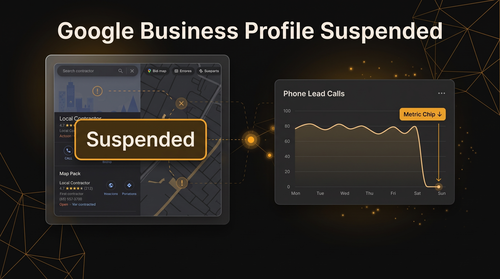
You log into your dashboard, and instead of your normal search impressions and call metrics, you see a bold red badge: Suspended.
Your business pin vanishes from Google Maps. Direct searches for your company name return your competitors instead. For local contractors—whether you run an HVAC company, a roofing crew, or a plumbing business—a suspended listing cuts off your primary source of inbound leads within minutes.
When this happens, most business owners panic. They hit the appeal button immediately, or worse, they delete their profile and attempt to build a brand new one. Both actions turn a manageable temporary hold into a permanent ban.
A Google Business Profile suspension is not a random penalty. It is an automated trust check triggered by an algorithm when your profile data deviates from Google’s guidelines or public business registries.
This technical guide details the exact process to audit your listing, assemble legal verification proof, submit a compliant google business profile reinstatement appeal, and get your service business back into the Map Pack.
- The Immediate 60-Second Reality Check (The 5 Rules)
- The 5 Types of Google Suspensions
- Root Cause Diagnosis: Why Profiles Get Flagged
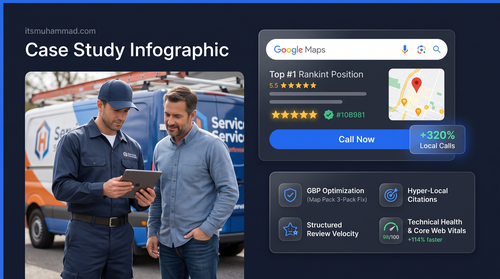
- Field Case Study: 72-Hour HVAC Listing Turnaround
- Document Assembly: The Verification Packet
- The Appeals Tool Step-by-Step Protocol
- Handling Denials, Additional Reviews, and Lost Reviews
- Long-Term Compliance & Protection Plan
- Frequently Asked Questions
The Immediate 60-Second Reality Check (The 5 Rules)
Before touching a single setting inside your dashboard, you must understand the five critical rules of local profile recovery. Breaking these rules accounts for the vast majority of permanent listing rejections:
Rule 1: Never delete your suspended listing to start over. Creating a replacement listing while an existing one is suspended triggers an immediate evasion flag. Google will suspend the new profile instantly, and your existing customer reviews will be permanently erased.
The 5 Types of Google Suspensions
Google categorizes profile restrictions into distinct tiers. Identifying your suspension type dictates the appropriate recovery route.
Soft Suspension
The business listing remains visible on Maps, but your status shifts to “Unverified”. You lose dashboard control and cannot reply to customer reviews or modify profile details.
Hard Suspension
The profile is scrubbed from Google Search and Maps. Direct brand searches display zero knowledge panel results, and customer call routing halts completely.
Account Restriction
Google flags the primary managing Google Account itself. A security penalty applied to one user cascades across every business profile managed under that email address.
Manager Account Contamination & Permanent Bans
04. Manager Account Contamination: Suspensions can stem from user permissions. If an outside agency or third-party contractor’s email address has accumulated policy violations on other client profiles, their presence inside your listing can trigger an automated security hold.
05. Permanent Suspension: The final and most severe state is marked Can’t be appealed. This occurs when automated moderation detects severe deceptive practices or when an appeal was denied and subsequent submission attempts offered no new legal evidence.
Does a profile suspension damage organic search rankings? Yes. While a soft suspension primarily affects map visibility, industry testing reveals that hard suspensions can temporarily drag down associated organic website rankings in local search results until the listing is restored and trust is re-established.
Root Cause Diagnosis: Why Profiles Get Flagged
Google relies heavily on automated scanning algorithms to audit business profiles. If your listing data deviates from your official commercial footprint, security flags are triggered. These are the primary triggers:
1. Address Ineligibility & Virtual Workspaces
Google requires a listing to be either a physical office with permanent exterior signage staffed during stated hours, or an official service business that hides its address. Setting your pin at a UPS Store, a P.O. Box, or an unstaffed shared coworking suite without dedicated lease documentation triggers automated suspensions.
2. The Storefront vs. Service Area Business (SAB) Conflict
For mobile contractors (plumbing, HVAC, electrical, roofing, cleaning), displaying a residential home address on Google Maps is a direct policy violation. If customers do not walk through your doors to buy services, you must toggle your profile to a Service Area Business and hide your street address. Your service territory must also remain within a realistic two-hour driving radius from your operational base.
3. Keyword Stuffing the Business Name
Adding search terms, zip codes, or location modifiers to your business name violates guidelines. If your legal registered entity is Apex Comfort Solutions, but your listing reads Apex Comfort Solutions - Emergency AC Repair Columbus, automated filters or competitor edits will flag your profile for misleading content.
4. Multi-Field Rapid Editing
Changing your business name, primary category, street address, and phone number simultaneously within a single session trips automated anti-hijacking safeguards. Spacing out configuration updates over several days prevents this.
Field Case Study: 72-Hour HVAC Listing Turnaround
To see how this works in practice, consider this real-world scenario of an emergency listing recovery for a regional home service contractor.
Apex Comfort Air — A residential heating and cooling contractor serving the Columbus, Ohio metropolitan area.
The business woke up to a hard suspension flagged for “Deceptive Content” right as summer temperatures peaked. Inbound calls plummeted from 15 per day to zero. A recently hired agency had modified the profile name to include extra service keywords and changed the primary address to a shared virtual office suite.
We stripped all keyword additions, restoring the profile name to match the exact legal entity on state records. The profile was transitioned to a Service Area Business (SAB), hiding the physical address and establishing a defined local service radius. We then removed the contaminated agency from “People and access” settings.
We compiled state registration filings, commercial liability insurance policies, an electric utility bill, and photos of branded service vans. Reinstatement was approved via the official appeals tool within 72 hours, fully restoring top-3 Map Pack rankings.
Document Assembly: The Legal Verification Packet
When a Google support specialist reviews your reinstatement request, they cross-reference your submission against official documentation. Submitting incomplete or mismatched paperwork guarantees a denial.
Prepare these documents on your computer before opening the appeals tool:
Legal Entity Proof
Official business registration from the Secretary of State, local municipal authority, or an official business license / tax certificate (EIN).
Operational Address Proof
A utility bill (electric, gas, water, or landline/internet) dated within the last 60 days. The business name and address on this bill must match your profile exactly.
Real-World Physical Proof
Clear photos of permanent exterior building signage for storefronts, or commercial vehicle fleet wraps, equipment, tools, and registrations for Service Area Businesses.
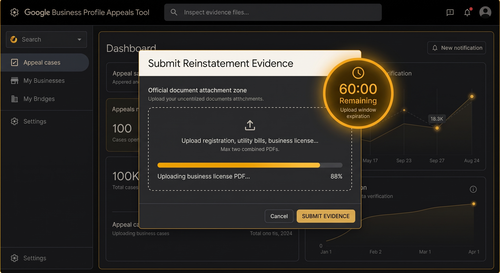
File Formatting Rules: Google’s appeals interface allows a maximum of two PDF attachments. Merge your business license, tax registration, and utility statements into one clean PDF document. If providing additional photo evidence, upload the files to a Google Drive folder and set access to “Anyone with the link can view” so reviewers can open it without permission errors.
The Step-by-Step Reinstatement Protocol
Follow this exact sequence to submit your appeal:
- Audit and Correct Your Profile First: Log into your Business Profile dashboard. Clean up your business name, verify your category, hide your address if you operate as a Service Area Business, and remove unverified managers under “People and access”.
- Access the GBP Appeals Tool: Open the official portal at Google Business Profile Appeals Tool while logged into the Google Account that manages the listing.
- Select Your Listing: Choose the restricted profile. The tool will display the moderation action (e.g., Deceptive Content) alongside your appeal eligibility.
- Submit Appeal & Beat the 60-Minute Clock: Click “Submit Appeal”. When prompted to add evidence, click “Add evidence” immediately. You have exactly 60 minutes to complete this step before the session expires.
- Attach Evidence and Context: Upload your merged PDF file. In the description field, write a concise statement: “We have audited our profile to ensure 100% compliance with Google Business Profile policies. Attached is our official business registration, commercial utility bill, and operational proof verifying our legal entity and physical operations. We kindly request reinstatement of our listing.”
- Save Your Case ID: You will receive a confirmation email containing a unique Case ID. Save this reference number for all future communications.
Handling Denials, Additional Reviews, and Lost Reviews
Reviews typically take between 3 business days and two weeks. If your submission is rejected, follow this escalation protocol:
Requesting an Additional Review
If your initial appeal is marked “Not Approved,” the dashboard will offer an option to submit an Additional Review. You only get one opportunity for an additional review. Do not resubmit the exact same files. Provide fresh third-party validation, such as a formal lease agreement, bank statements, or an unedited video showing your work vehicles, tools, and business operations.
Escalating via the Google Business Profile Community
If your listing is stuck in a rejection loop or marked “Can’t be appealed,” create a detailed thread on the official Google Business Profile Help Community. State your business model, outline the fixes made, include your Case ID, and link your shared Google Drive folder containing proof. Google Platinum Product Experts can evaluate your case and flag valid listings for internal manual re-investigation.
The Missing Reviews Bug Post-Reinstatement: When a profile is restored, customer reviews frequently disappear, displaying a count of zero. This is a database synchronization delay. In most cases, reviews reappear automatically within 48 to 72 hours as data syncs across edge servers. If reviews remain missing after 5 business days, contact Google Business Profile support, cite your reinstatement Case ID, and request an index re-sync for your reviews.
Long-Term Maintenance: How to Protect Your Reinstated Profile
Once your profile is back online, maintain these operational guardrails to prevent secondary suspensions:
Frequently Asked Questions
Why did Google suddenly suspend my Google Business Profile?
Google suspends listings when automated algorithms detect discrepancies between profile data and public business registries. Common triggers include using a virtual office address, displaying a residential address for a mobile trade, adding keywords to your business name, or editing multiple primary settings in a single session.
How long does Google take to review a suspension appeal?
Most straightforward appeals with clear documentation are reviewed in 3 to 7 business days. Complex cases or those submitted during heavy support backlogs can take 2 to 4 weeks.
Can I create a new profile while mine is suspended?
No. Creating a new profile to replace a suspended listing violates Google’s anti-evasion policies. Google’s systems will detect the matching business information, auto-suspend the new listing, and potentially delete your existing customer reviews permanently.
Why are my Google Ads still running if my profile is suspended?
Google Ads and Google Business Profile operate on separate system architectures. A suspension on your Business Profile removes you from local organic Map Pack rankings, but your paid Google Ads campaigns continue running until you pause them manually in your Ads dashboard.
What should I do if my appeal was rejected?
If your appeal is marked “Not Approved,” submit an Additional Review request through the GBP appeals tool using fresh, secondary documentation like lease agreements, tax documents, or video proof. If that fails, escalate your case on the official Google Business Profile Help Community with your Case ID.
Why did all my customer reviews disappear after reinstatement?
This is a standard post-reinstatement synchronization delay. Google’s databases often take 48 to 72 hours to reconnect historical reviews to your reinstated profile. If they do not return after 5 business days, contact support with your Case ID to request a manual review re-sync.
Profile Suspended? Don’t Risk a Permanent Ban.
Navigating the GBP Appeals Tool without an objective technical audit often results in a permanent rejection. If your listing has been taken offline and you need an expert to audit your listing, compile your legal documentation, and handle the recovery process directly, I can help.
Request an Emergency GBP Reinstatement Audit →